Wednesday, March 26, 2014

Run with Arguments plugin for NetBeans IDE 8.0 available on update center

The Run with Arguments plugin which I mentioned in my earlier post is now online and available on the Plugin Portal Update Center.

This means that now this plugin is available in the NetBeans IDE Plugins dialog box, in the available plugins.


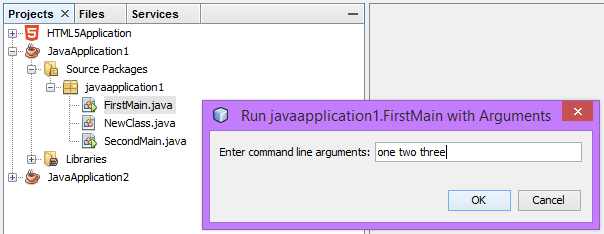
This is a short demonstration for features of this plugin.  This plugin provides features to run Java projects or any Java file having main method with interactive command line arguments.

with regards
Tushar Joshi, Nagpur

Oracle Announces New NetBeans IDE 8.0 with Full Support for Java 8


I am sharing the announcement published on NetBeans Dream Team mailing list by Tinuola Awopetu AS IS here:

NetBeans IDE 8.0 delivers comprehensive support for the latest Java 8 technologies--Java SE 8, Java SE Embedded 8, and Java ME Embedded 8. The IDE also provides a range of new enhancements for Maven and Java EE with PrimeFaces; new tools for HTML5, in particular for AngularJS; and improvements to PHP and C/C++ support.

Download NetBeans IDE 8.0!

Release Highlights:
  • Java 8 technology support
  • Java EE code generators for PrimeFaces
  • New tools and performance enhancements for Maven
  • New tools for coding AngularJS
  • Tomcat 8.0 and TomEE support
  • Support for PHP 5.5
  • Enhancements for Subversion, Git and Mercurial
  • NetBeans IDE 8.0 is available in English, Brazilian Portuguese, Japanese, Russian, and Simplified Chinese.

More Information
Complete list of features in NetBeans IDE 8.0

Video: What's New in NetBeans IDE 8.0

New Screencasts and Tutorials
Oracle Press Release

Saturday, March 22, 2014

Command line Arguments for Java Projects in NetBeans IDE

Topics Covered
  1. Exploring "Run with Arguments" module
  2. Providing command line arguments to single Java Files
NBRunWithArgs is a new NetBeans IDE module which is created by yours truly :)
It is available at the URL https://github.com/tusharvjoshi/nbrunwithargs .  To install this plug-in we have to follow these steps.

  1. Ensure you are using the latest and greatest NetBeans IDE 8.0
  2. Download the latest realease 1.1.0 NBM file from the releases page of project site.  The exact link for the download of release 1.1.0 can also be used.
  3. Open the Plugin Manager in NetBeans IDE by using Tools > Plugins menu option
  4. Navigate to the Downloaded tab and using the Add Plugins... button locate the downloaded NBM file and install it, approve the certificate.
  5. NetBeans IDE will restart and then the plugin is ready for show
How to use the plugin:

Run Project with Arguments
1. The command will be available in the Run Menu or context menu of a Java project (right click menu)


Run a single file with Arguments
This is a feature which is not available by any other way in NetBeans IDE 8.0 yet.  Even if your project has many files having main method you can right click the file you want and use the Run with Arguments command to run the file with command line arguments


Thursday, March 6, 2014

NetBeans Platform for Beginners - book by Jason Wexbridge and Walter Nyland

Recently I got a chance to read book - NetBeans Platform for Beginners by Jason Wexbridge and Walter Nyland.  I am happy to share with you all that this book has added much required and missed knowledge about NetBeans Platform in world.

https://leanpub.com/nbp4beginners

Major points worth mentioning here are:

Flexible Price
The authors have chosen Leanpub.com as their book authoring system which offers choice to the readers for paying a flexible price for the book.  The authors have kept a range of price for this book and for some days it is available for a lesser amount.  I liked this way of publishing.  Once I buy an eBook from Leanpub.com all the updates to that book done by the author are made available to the readers which is great.

Strong theoretical base
This book takes a way of teaching where they explain the concepts involved in the chapter theoretically in details as the first part of the chapter.  The second part of each chapter presents an example using the theory presented in the first part.  I feel this is a good way of teaching for a beginners book.  It provides detailed knowledge of the elements of the NetBeans Platform and immediately they also get information about how to use the knowledge in real life scenario.

Important and necessary topics
This book covers important topics which are needed to understand the NetBeans Platform system and goes into details of those chosen topics to make the knowledge base strong for the learner.  The detailing is so fine that experienced NetBeans Platform developers will also find this book handy for reference purposes.

Complete example per chapter
The book uses a practical example per chapter which gets completed and can be implemented fully with the chapter.  The example does not depend on any other chapter exercise of examples.  I found this as a better way to do the examples.  Just because of this method learner can choose any topic and complete reading it and doing the example without depending on any other chapter for code or domain understanding.

Latest API and references
This book is the latest reference of the NetBeans Platform available now.  It also mentions many new API annotations added to the platform in the recent past. 

Content
The book starts with Core concepts, then GUI concepts and finally some extra items like Project concept and other utilities.  The book has enough content for enabling a reader to start developing NetBeans Platform applications.  The illustrations are crisp and provided when needed.

Finally I will recommend all readers to buy this book and enrich their NetBeans Platform development toolkit.  It is a essential resource you should have in your set.  I have seen the authors of the book accepting the feedback about the book on the site readily and they are also preparing for updates to the book as and when new information becomes available.

I am grateful to Geertjan who recommended this book to me and to the authors of the book who provided discount coupon for the book purchase.  I believe this book will enrich my knowledge about NetBeans Platform and will provide detail reference when needed while developing NetBeans Platform applications.

Wednesday, July 6, 2011

NetBeans IDE 7 Cookbook


Packt Publishing has published a brand new book on NetBeans IDE, named NetBeans IDE 7 Cookbook.  This is a treat for NetBeans IDE users.  I got opportunity to review this book from Packt Publishers due to this NetBeans IDE blog.

Stay tuned for the next post where I will present my review about this book.  Meanwhile do you know that Packt Publishers have made one chapter if this book completely free and available for download?

The free chapter can be downloaded from here.

with regards
Tushar Joshi, Nagpur

Wednesday, June 8, 2011

Hierarchy View in Project Panel of NetBeans IDE

This post will cover following topics, questions:

  • How to change the package display type in NetBeans IDE?
  • How to see packages as hierarchical tree in the Projects Panel of NetBeans IDE?
  • Where is the menu to change List view to Tree view for packages in NetBeans IDE?
  • Customizing the display of Projects Panel in NetBeans IDE.
The preferences for how to see the package hierarchy in Projects Panel change from developer to developer.  Some times I like the flat display of the default NetBeans IDE Projects Panel which shows all the packages one below the other and all the classes in the package as a list below the package fully qualified name.  This makes the Projects panel only 4 node deep.


NetBeans IDE also allows us to change the display mode from List to Tree for the packages.  So instead of flat fully qualified name mode we can change the display to Tree like hierarchy mode where all the folders will also be converted to nodes and the depth of the Projects Panel tree will be deeper.

To do this we have to right click on an empty area of the Projects Panel.  The "View Java Packages As" menu only appears when we right click on an empty space of the Projects Panel.  This menu has two options and the List one is selected by default.  We can choose the Tree option to change the display of the Projects Panel to hierarchy mode.


When we change the mode to hierarchy the display looks more or less like the Files panel and the packages are shown as folder nodes.  This also makes the tree deeper according to how deep the packages are in hierarchy.


It is good to know the way to switch between these modes so that we can change the mode for some time if we want and again change it back to what it was.

The NetBeans IDE remembers your last choice by saving the preference in user directory, so when the NetBeans IDE is opened again next time the Tree mode or List mode of the Projects Panel is maintained.  

with regards
Tushar Joshi, Nagpur

Sunday, June 5, 2011

Downloading OpenJDK7 Binary for Mac OS X

 NetBeans IDE 7.0 has support for the bleeding edge OpenJDK 7.0 build release.  Even if Mac OS X does not have an official binary distribution on the Open JDK site yet, we can still get a DMG bundle of the latest build of Open JDK7 to test on Mac OS X.

Let us go through steps we need to perform to install and test OpenJDK7 on Mac OS X.  The OpenJDK7 latest binary is available on the Google Code site http://code.google.com/p/openjdk-osx-build/

The latest build available there today is seen as b144 which is the latest build available on the OpenJDK7 download page also.  This bundle is available in 32 as well as 64 bit version.


They have created a nice DMG bundle which shows the Java mascot when we open the DMG.


The installation starts as a usual Mac OS X installer bundle.  As seen from the below image this version takes 179.6 MB on disk.


Once we have installed the OpenJDK7 latest binary build.  We can start the Java Preferences application from the Spotlight and can see two more JDK instances available in the list of JDK available.  One for 32 bit and one for 64 bit.

If we choose we can set the JDK7 version default here.  I choose not to set it as default yet as it is not an official version from OpenJDK7 site.  We can still use this JDK from NetBeans by registering it as a JDK platform.


For registering the JDK7 as platform on NetBeans IDE 7.0 open up the Java Platform Manager from Tools > Java Platforms menu.  The new JDK7 will not be seen yet.  We will have to press the Add Platform button.


NetBeans IDE will point you to correct Java Library directory from where you can choose the openjdk-1.7 instance of the java platform.


When we select the openjdk-1.7 folder NetBeans IDE correctly fills all the required information and presents a prefilled dialog boz for Add Java Platform and we just have to click Next.


JDK 1.7 will start appearing in the available Java Platforms list.  As we can see NetBeans detects all the required files and documents required for registering the JDK 1.7 platform.


Now we can start any Java project and set the Java Platform as JDK 1.7.  For that we will have to open the Project Customizer by right clicking the project and choosing the Properties menu.

We need to change the Java Platform entry in the Libraries node first.


Once the Java Platform is set as JDK 1.7 in the Libraries Node it becomes available in the Sources Node also in the Source/Binary Format combo box.  We will have to set this as JDK 7 also.


Now this project is set to be compiled and run under Java 7 platform.  We can test this by adding some generics statement and NetBeans IDE offers a hint to use diamond operator (Project Coin)


NetBeans IDE will also apply those changes to the code when we select the hint as seen in the image below.


So this is how we can install latest JDK 1.7 on our Mac machines and test the JDK 7 version from NetBeans IDE 7.0 which supports JDK 1.7 features now.

with regards
Tushar Joshi, Nagpur

Monday, April 25, 2011

When you file bugs with NetBeans IDE

When we file bugs with the NetBeans IDE issue tracking system, and when they are resolved, we get a mail as above.  After a major release like the current release NetBeans IDE 7.0 the NetBeans quality team send such messages to the reporters of the bugs which got resolved.

This is a very good feature and I liked it.  It feels like someone is really listening and coming back with solutions.

Thanks you NetBeans Team.

with regards
Tushar Joshi, Nagpur

Thursday, April 21, 2011

Download your copy of NetBeans IDE 7.0

NetBeans IDE 7.0 is released and available for download from the NetBeans site.

NetBeans IDE 7.0 features the following changes:
  • Introduction of JDK 7 support including editor enhancements (syntax, hints)
  • Revamped support for WebLogic Application Server and GlassFish 3.1
  • Oracle Database improvements
  • HTML5 editing support
  • Maven 3 is supported and bundled with the IDE
  • Improved support for CDI, REST services, Java Persistence, and Bean Validation
  • PHP Rename Refactoring
  • Line wrapping
  • Improved detection of external changes (native file system listening)
  • Updates to the C/C++ support (remote file system browsing, library projects running/debugging, enhanced templates/specializations)
  • Support for Git 1.7.х
  • Additional enhancements are listed at the NetBeans IDE 7.0 New and Noteworthy page
For more about this release, see the NetBeans IDE 7.0 Release Information page.

with regards
Tushar Joshi, Nagpur
Wednesday, September 15, 2010

Changing Help Brower font-size in NetBeans IDE


Help Browser font is not configurable in NetBeans.  After detailed discussion it was set to such a value which will be usable for all operating systems.

So there is no normal way to change the font for the Help Browser. There is a hack around this, knowing the fact that the Help browser uses HTML and CSS files. You can change the CSS definition of the body and p elements in the CSS file which is used for the Help Browser. The downside is you have to edit this file any time you want the font size to be changed.


The image above is what you will see if you open the Help Browser on a Mac.

If for some reason you want the font size bigger then the way to change font size is to open the ide.css file located in the paths below and change the "font-size: medium" definition to "font-size: large" for body and p element definitions.  In fact you can use any value acceptable for fond size in CSS files.


Path for the usersguide CSS file on different platforms:

On Mac
/Applications/NetBeans/NetBeans 6.9.1.app/Contents/Resources/NetBeans/ide/docs/org/netbeans/modules/usersguide/ide.css

On Ubuntu
$USERHOME/netbeans-6.9.1/ide/docs/org/netbeans/modules/usersguide/ide.css

On Windows 7
C:\Program Files\NetBeans 6.9.1\ide\docs\org\netbeans\modules\usersguide\ide.css

After changing the font-size to large:

You can see the Help Browser font is now bigger.

One better way of doing customizations in the ide.css file could be adding a customization section at the end of the file as follows:

/* Help Font Customization section */
body, p { font-size: large; }
/* end customization */

with regards
Tushar Joshi, Nagpur

Monday, September 13, 2010

Book Review: NetBeans Platform 6.9 Developer's Guide by Jurgen Petri


This book NetBeans Platform 6.9 Developer's Guide offers to help you in your transition from a Java Developer to become a NetBeans Platform Developer. The approach used in this book is an approach by example. Teaching through an example is a powerful pedagogical pattern which works. This book has assumed a requirement for creating a software with certain features and gradually progresses to develop this assumed software through many chapters. Through different chapters this book tries to teach a developer new concepts which are used in NetBeans Platform like Lookup, Window Systems, Nodes, File System and layer mechanism to name a few. I liked this approach of teaching through an example software requirement.

Developers are most comfortable when someone explains them through code examples. When a book offers learning by example it is always a pleasure. My first reaction was to search for any code sample if provided by the publishing company. I downloaded the code sample from Packt Publishing book page. When developers try to learn a new concept and write code according to instructions the sample code provide a check point to compare whether they have done it write.

The code sample provides significant data to compare but it would be more helpful with some additional things mentioned below:


  1. As of today the code sample does not compile on NetBeans IDE 6.9 out of the box, as it needs some changes in the settings
  2. The presentation locale for the code sample is in German and hence less intuitive to an English reader
  3. The changes in the settings like Lookup module, deprecated Swing extension module can be done by developers who already know some NetBeans platform concepts but for a total beginner they may render the code sample useless.
  4. The code sample is the final version of the software which gets developed progressively through the chapters so it does not help much in the initial chapters, if the code sample is available in chapter wise format it will be a great aid for the book.

The instructions given in the book if followed word by word and line by line, then they do not work in some places. This was a frustrating thing for me. I could figure out the changes needed as I am well ahead in the NetBeans Platform learning curve and have read 2 more books on NetBeans Platform and have watched the top 10 API videos by Geertjan.


For a total beginner the instructions given in the book MUST work when followed exactly word by word and line by line, to give a smooth experience and to avoid frustration.  For me this doesn't happened with this book.  Blindly following the instructions in the book do not lead to smooth running application and need some refactoring of access (like making certain packages public), one misplaced illustration as mentioned in the the errata on NetBeans wiki and other corrections also mentioned on the errata page.

I came to know about the ERRATA for this book at Packt Publishing site and also one ERRATA maintained by community at the NetBeans Wiki here. This Errata is a MUST to follow to make the instructions in the book work for you. So using this book plus the errata on the NetBeans wiki makes the book complete in all the instructions. With this correction this book will help a Java developer kick start as a NetBeans Developer.

In summary the plus points of the book are:
  1. Teaching by example pedagogical approach
  2. Way of teaching and the language is easy to understand.
  3. Lots of illustrations
  4. Step by step instructions which can be followed to recreate what has been taught (Requires help from errata published on NetBeans wiki)
  5. Experience of creating a complete software using NetBeans Platform towards the end of the book

and the minus points, which I believe will be corrected gradually by Packt publishing by publishing complete errata on their site and fixing the text in next edition
  1. Code sample not chapter wise
  2. Code sample not in English locale
  3. Many corrections required in book to make it work in code as expected by the author. This point is disappointing for a total new developer as they may have no clue about how to correct these errors, and the errata maintained by community is a must reference in that case.

In conclusion Packt Publishing has added one more interesting book in the range of NetBeans Platform learning books. This book gives the feel of NetBeans Platform development quickly and provides opportunity for developers to kick start their journey in the NetBeans Platform land.

With regards
Tushar Joshi, Nagpur

.

Netbeans IDE is powered by NetBeans Platform

.


NetBeans IDE is built upon a software system called as NetBeans Platform. NetBeans Platform is used in software development since year 2000 when it went open source. NetBeans Platform is a framework which enables rapid desktop application development. It is an evolving platform and can do much more than rapid application development.

When we start developing a Java application, to achieve some business requirement; we often encounter a set of similar minimum requirements for a software.

The requirements like:

  • Software shall be modular, which will enable us to turn modules on or off.
  • Software shall be extensible, which will make it easy to add more functionality and extend the existing functionality.
  • Software shall have a consistent User Interface and shall follow industry standards for graphical user interface.
  • Software shall provide multithreaded approach for parallel tasks.
  • Software shall contain configurable settings for many features offered in it
  • Software shall have dockable windows
  • Software shall be cross platform
  • Software shall have cross platform deployment mechanism in such a way that native operating system users are comfortable with it
  • Software shall have a update mechanism, which will enable the user to update the modules online
  • Software shall have module versioning feature which enable developers to create modules for the software which depend on certain version of earlier modules
NetBeans Platform provides solutions for all the requirements mentioned above in a time tested way. It is prudent to use such a platform to develop softwares having more than one of the requirements listed above to save time in architectural features which are necessary for the stability and usability of the software.

This out of the box feature availability is the reason why the people listed in the NetBeans Showcase have chosen NetBeans Platform to build their software applications. I got acquainted with the NetBeans Platform when I started writing this blog and I was fascinated with the platform. Obviously my next step was to start learning this framework and I started searching for documentation and books.

Many things are helping me learning the NetBeans Platform like:
What I found out from my learning is that there is a learning curve associated with NetBeans Platform as it was developed through many years and contains tons of patterns and practices. But, once you acquire the skill of using NetBeans Platform it is a pleasurable experience and efficient way of developing Java applications.

To make the learning easy for new developers Packt Publishing has published a new book for NetBeans Platform named NetBeans Platform 6.9 Developer's Guide by Jürgen Petri.  Initially this was a book in German language which is translated by the NetBeans Community in english to make it available for wider audience in the world.

I was asked by Packt Publishing to review this book because of my association with NetBeans IDE and because of this blog where I write about NetBeans IDE. It was a pleasure receiving a complimentary PDF copy of the book and going through all the concepts presented by the book.

With regards
Tushar Joshi, Nagpur

.

Monday, August 16, 2010

NetBeans Platform 6.9 Developer's Guide


Packt publishing has published a new book on the development of NetBeans Platform applications named NetBeans Platform 6.9 Developer's Guide.  The description of the book says that:

This book guides you through the development of a complete Swing application built on the NetBeans Platform. Each chapter introduces a number of new concepts relating to a theme, such as the window system, and then shows you how to implement the concepts in the application you are creating. At the end of the book you have a task manager, which you can adapt to your own purposes. Or you can, of course, create your own applications, now that you have built up a solid basis of NetBeans Platform knowledge.

I will be presenting a detailed review of this book, in my next post.

[UPDATE Sep 12, 2010] I started evaluating this book like a total beginner, and it is taking me some time to go through the sample code and to reproduce what is taught.  This is helping me understand what a new learner will feel after reading this book.  I will post my review soon.

with regards
Tushar Joshi, Nagpur

Friday, April 23, 2010

Download NetBeans IDE 6.9 Beta


Tinuola Awopetu announced the availability of NetBeans IDE 6.9 Beta on NetBeans Mailing lists.  The announcement is as follows:

NetBeans 6.9 Beta introduces the JavaFX Composer, a visual layout tool for visually building JavaFX GUI applications, similar to the Swing GUI builder for Java SE applications. Additional highlights include OSGi interoperability for NetBeans Platform applications; support for JavaFX SDK 1.3, PHP Zend framework, and Ruby on Rails 3.0; as well as improvements to the Java Editor, Java Debugger, and issue tracking, and more. NetBeans 6.9 Beta is available in English, Brazilian Portuguese, Japanese and Simplified Chinese, as well as in several community-translated languages.

Release Highlights:

OSGi

  • Develop OSGi bundles with Maven
  • Bundled Felix container and ability to register other containers such as Equinox
NetBeans Platform
  • OSGi interoperability: Developing and consuming OSGi bundles in Platform-based applications
  • Felix 2.0.3 OSGi support, experimental Equinox support
JavaFX
  • JavaFX Composer for form-like UI components with states and access to various data sources
  • Added and improved editor hints and refactoring
Java EE
  • Support for Contexts and Dependency Injection (CDI) (JSR-299)
  • Spring Framework 3.0 support
Java
  • Java Debugger: Breakpoint grouping, attach parameter history
  • Support for annotation processors in the editor, configurable in the Project Properties
PHP
  • Zend Framework support
  • "Overrides/Implements" and "Is Overridden/Implemented" annotations
Ruby
  • Ruby on Rails 3.0 support
C/C++
  • "Overrides/Is Overridden" annotations and hyperlink navigation
  • Console type "Internal Terminal"
To learn more visit this link about Beta release.

The final release of NetBeans 6.9 is planned for June 2010. Download Beta today and give feedback about your experience with it. You can also join discussions about the NetBeans IDE and the NetBeans Platform on mailing lists and forums. If you blog about using NetBeans add your blog to Planet NetBeans. Follow NetBeans on Twitter for updates about NetBeans news and development.

with regards
Tushar Joshi, Nagpur

Sunday, August 23, 2009

Making executable desktop application in NetBeans

UPDATE (26 Aug 2009): NetBeans IDE can create executable JAR for any Java project. The steps described in this post are just one way of creating the executable JAR and not the only way. Following the steps described in this post any Java project can be bundled as a JAR executable project.


Topics covered in this post:
  1. How to create a desktop application in NetBeans?
  2. Where is the JAR file after building the application in NetBeans?
  3. Can a Java Desktop application started by double clicking?
We will start with creating a New Project in NetBeans. This is done by choosing menu File > New Project...


In the New Project dialog box choose Java in categories and Java Desktop Application in the projects List box. Then click the Next button.


Choose all the default values offered by NetBeans IDE in the New Desktop Application dialog as we want to see what is offered as defaults by NetBeans. Click Finish to allow NetBeans to create a new project for us.


After we click finish we get a desktop application with some boilerplate code and windows.


Click the Run button in the tool bar or choose menu Run > Run Main Project to see what is displayed when we Run the application with the default code.


We can see that the generated project is a complete application which runs and shows a window with menu and status bar. To run the application outside NetBeans let us build the application. The current version of NetBeans IDE 6.7.1 compiles and builds the project automatically as you save the project. Let us invoke the menu Run > Clean and Build Main Project to see the build process and the message which is shown after a successful build. This message has a tip for us.


The build successful messages tells us the exact location where the application JAR file is kept. We can navigate to that folder through Explorer and double click the JAR file.


The application is not dependant on NetBeans once it is build. Check the JAR file in the folder, in our case it is DesktopApplication1.jar.


When we double click this JAR file the application starts as if like a EXE file. Java is registered in windows registry as the handler of JAR files so when we double click the JAR file windows shell invokes Java Virtual Machine and hands this JAR file name over to it, so it can execute it for us.


Sometimes software like Nokia PC Suite adds JAR file handler entries in windows registry, in that case the JAR file may not run exactly as I have shown. If that happens just right click on the JAR file and choose Open With option. You will get all the application names registered to handle JAR files and choose Java in this menu to achieve the execution of JAR file.

The JAR file created by NetBeans is executable because NetBeans adds a MANIFEST.MF file in the JAR with proper entry of the Main class of the project.

with regards
Tushar Joshi, Nagpur

Wednesday, August 12, 2009

SHIFT+Click to close all Editor Tabs and ALT+Click to Close all others

Tips covered in this post:

  • How to close all the editor tabs in NetBeans IDE?
  • How to close all other editor tabs except the current one in NetBeans IDE?
  • How to use mouse and keyboard combination for productivity in NetBeans IDE
SHIFT+Click
When there are many editor tabs open in NetBeans IDE and we want to close them all, we have the keyboard shortcut of CTRL+SHIFT+W, but this can also be done using mouse and a single click. Just hold the SHIFT key and click on any of the editor tab close marks and wooooosh all the editor tabs will be closed.

ALT+Click (Option+Click in Mac)
When there are many editor tabs open and we want to keep only one tab open and close all the others in a single click, just hold the ALT button and click on the close button of the editor tab you want to keep open. This will close all the other editor tabs and only the one you clicked is retained.

with regards
Tushar Joshi, Nagpur

Tuesday, June 30, 2009

Download NetBeans IDE 6.7

NetBeans IDE 6.7 is out and available for download. The description as given in mailing list is as follows:


The focus of NetBeans IDE 6.7 is connectivity—helping developers to connect to the latest technologies and to each other. New features include integration with Project Kenai, a collaborative environment for developers to host their open-source projects; native Maven support, and Hudson integration.

Building on the success of previous releases, NetBeans IDE 6.7 offers enhancements for Java, PHP, Ruby, JavaScript, Groovy and C/C++, and more. Additional highlights include a self-diagnostic Profiler, and support for SVG Rich Components, remote debugging in Ruby, and the latest version of GlassFish. The release also provides plug-in support for Zembly, a single registry and repository for popular Web APIs.

Providing superior support for multiple languages and innovative team support through Project Kenai, the NetBeans IDE 6.7 is the ideal tool for developers to stay connected to their teams and to the latest technologies!

NetBeans IDE 6.7 is available in English, Brazilian Portuguese, Japanese and Simplified Chinese. There are several community-contributed localization efforts underway to support additional languages. Join the efforts today.

More information about NetBeans IDE 6.7:
As always, we welcome and encourage feedback about your experience using the NetBeans IDE. Share your thoughts on our mailing lists and forums. If you blog about NetBeans add your blog to Planet NetBeans. Follow NetBeans on Twitter for updates about NetBeans news and development.

NetBeans IDE Connects Developers!

Friday, February 20, 2009

Opening NetBeans projects and files from Linux File Browser

This post covers the topics as follows:
  • How to add Open with NetBeans option in the Ubuntu (Nautilus) context menu?
  • How to open Projects and files from Linux File Browser (in our case Ubuntu Nautilus)?
  • How to use Netbeans IDE as a generic file editor?
As described in the earlier post NetBeans IDE has a command line option --open which allows us to open any file and folder through command line in NetBeans IDE.  Let us check how easy it is to add a context menu option on Linux for this technique.

Adding Open with NetBeans context menu in Linux File Browser
We will open File Browser in Ubuntu which happens to be Nautilus application.  We will navigate to the user home and on the folder icon we will right click to see the context menu.  We will select the option "Open with Other Application..." option.


Open With dialog box will be shown with the "Use a custom command" portion collapsed.  We will click on this portion to get the expanded view of the dialog


The expanded view of the Open With dialog will allow us to type the custom command, which in our case will be 

/usr/local/netbeans-6.5/bin/netbeans --open


The folder will get open in NetBeans IDE when we will press the Open button now.  Not only this but now the option of Open with NetBeans will be added to the context menu for this user. We can check that by navigating to any folder which is a NetBeans project and right clicking it.  Now we can see the Open with "netbeans" option in the context menu.


This makes opening projects in NetBeans IDE a piece of cake.  Not only projects but any folder can be open like this in NetBeans IDE using this context menu.  If the folder is not a NetBeans Project it will get opened like a folder explorer panel which is very handy to work with files.  See how the opened project looks like when opened through this context menu.


Opening files using context menu in File Browser in Linux
Using the same technique we can also add a context menu for files.  Let us right click a file and select the "Open with other Application..." option from the context menu.


Again the Open With dialog will pop up. We will type the same custom command here also.


Now the context menu for files is ready to use.  Let us right click on any file and we get a Open With sub menu, which has many options including the Open with "netbeans" option also.  Now we can use this context menu option to open literally any file from the File Browser.


When a file is opened like this NetBeans IDE provides all the syntax highlighting features for the file type.  This makes NetBeans IDE a general purpose editor for any file.


I also tried to run a simple Java file opened like this in NetBeans IDE and it executed and displayed the output on the output window.

with regards
Tushar Joshi, Nagpur